
“For every minute spent in organizing, an hour is earned,” Benjamin Franklin wrote. Personally, lack of organization has always been a typical flaw of mine. I like searching for materials and tools on the web, and I always catch myself downloading heavy PDFs that I imagine I might need someday, so my desktop is filled up with folders (and folders inside of folders as if they were mocking matryoshkas staring at me), and even my browser has infinite tabs open at the same time (for an interesting tool on how to deal with tab problems, see Johnathan Robker’s “Organizing Browser-heavy Workflows”). Lacking time and with a lot of work, I knew I had to start “earning hours.”
Recently, I started a project named Plataforma Shiori (“Shiori Platform”, in Portuguese) as part of a postdoctoral research plan for the Federal University of Amazonas, Brazil. This digital platform aims to provide content related to Brazil-Japan relations through literature. Its scope includes literature produced by the descendants of Japanese immigrants in Brazil, translation history (Japanese-Portuguese and vice versa), literary collections in National Libraries (Japanese works in Brazil and Brazilian works in Japan), and other related items. The platform’s name comes from the word shiori, which has many meanings, all of them quite emblematic. Shiori means 1) “bookmark,” “page marker” (栞), but also 2) “guide book” or “instruction manual or basic information” (しおり), 3) “broken pieces of branch that mark the way in a forest, for example, so that one knows how to return” (枝折), or 4) “interpenetration of the spirit between the poet and nature in haiku” (撓).
With such a scope, I needed to start thinking about how to organize the data I already had and to store the other information and sources that I would discover. That was when I found Wakelet (from wake, a place of gathering), a digital curation tool that allows us to collect materials in different formats, organize them, and share them if we want to. It can also be used by teachers who want to share tasks and materials with students, thanks to its availability in individual and/or collective profiles.
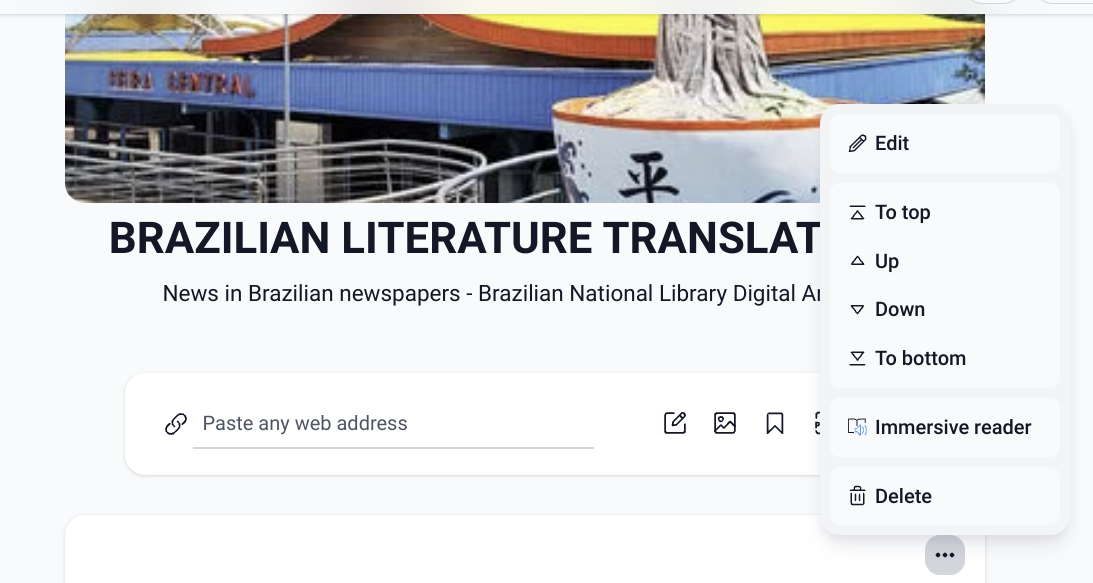
It is very intuitive and easy to configure. It has many features that are common to these sorts of resources (editing tools, customizing buttons, search, bookmarks, and so on), and the free version covers the basics and some more. You can easily log in with an email account, provide some basic information like your purpose (educator, student, business, or other) and location, configure your workspace as individual or collective, for work or personal use, etc. As for the editing of the collection, there is also the “immersive reader” accessibility tool, which seems at first to be a useful tool – for it allows one to listen to the pronunciation of words individually – but can be a little tricky when used for names in languages other than English. I tried it with “Soseki” and the result was not what I expected.
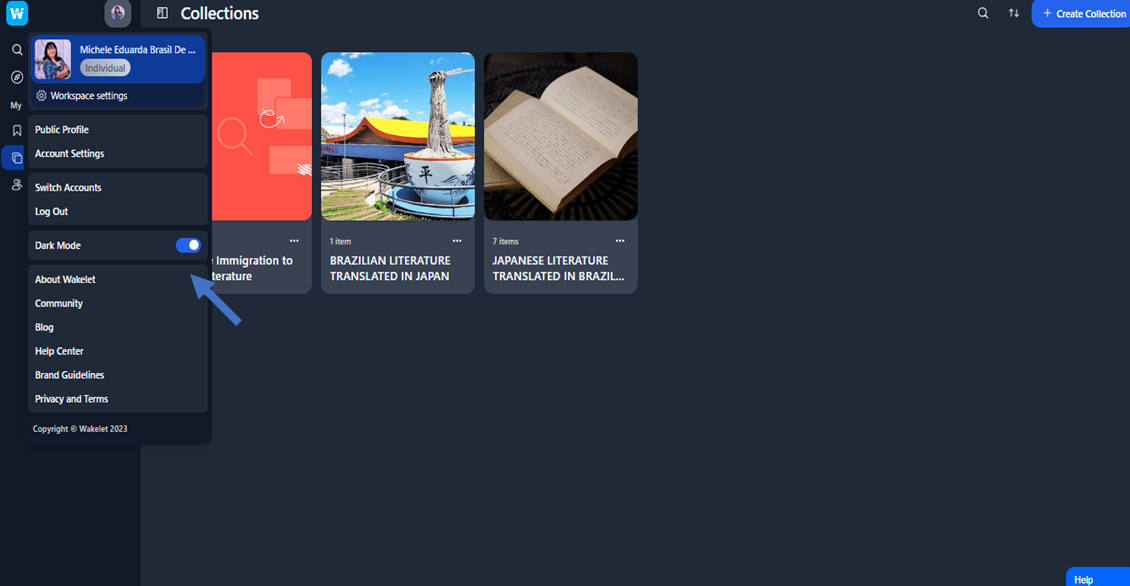
There are seven different free templates to start: newsletter, to-do list, choice board, weekly planner, lesson plan, reading list, and research collection. You can also start from scratch and add your items simply by clicking on the blue rectangle on the upper right corner of the screen labeled “create collection.” You can also switch to the dark mode from the main menu. I signed up with my Google account, so my picture is already there; when using a non-supported e-mail server, it is possible to upload a picture as in many other online tools, in “Public Profile” -> “Edit.” You can, of course, edit your header picture and user name and add a short bio and social links.
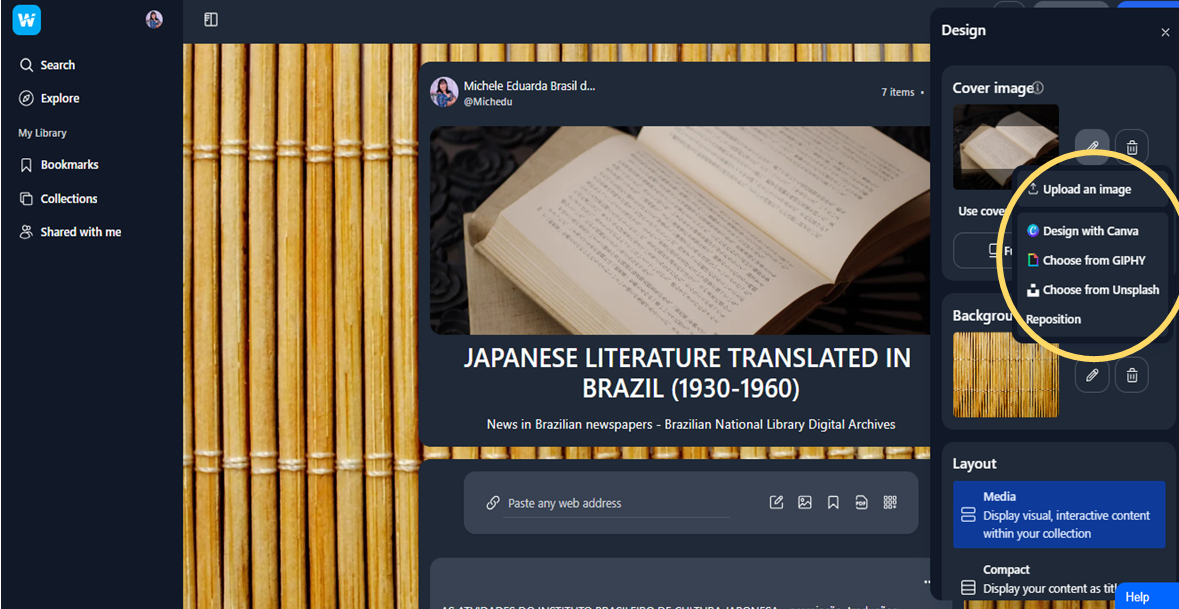
Each collection can also be configured differently. On the “Design” page it is possible to change the collection’s layout and upload cover and background images. If you do not have your own pictures, you have the option of choosing one directly from Giphy or Unsplash or making a new design with Canva.
Once you share your collection, it becomes visible to other people, and they can follow you. You can also find similar projects or connected ideas in the “Explore” section. You may choose one of the highlighted collections (or use the search tab for the subject you are looking for) and click the “Follow” button as if you were on Facebook:
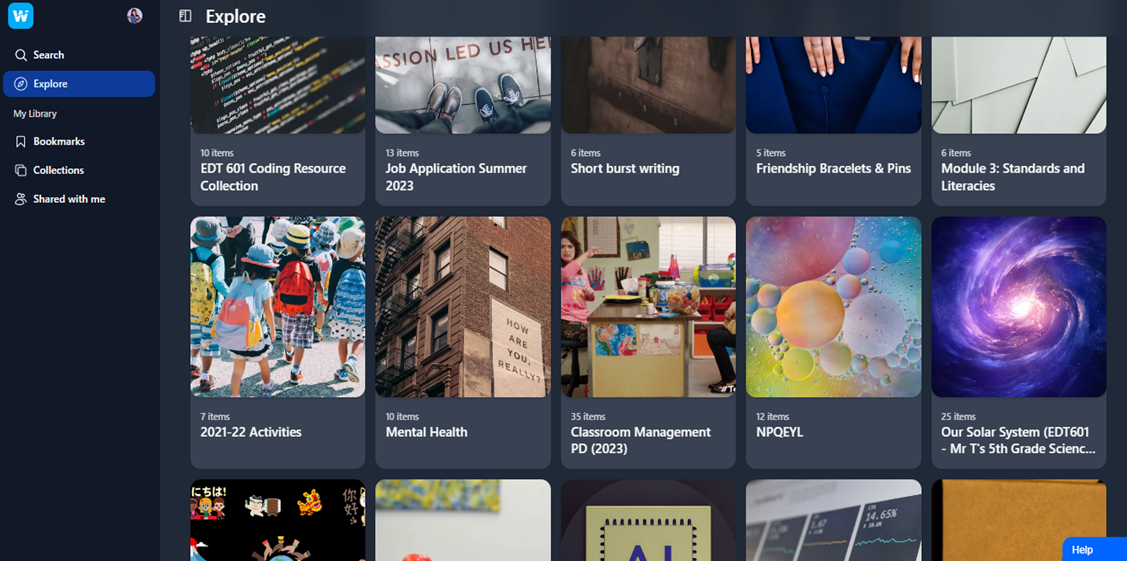
Notice that you follow the owner of the collection, not the collection itself. So, if you loved one of somebody’s collections but feel uncomfortable with some of their others, you will have to cope with it or choose not to follow them. In other words, it functions partially like a social media platform.
It is also possible to easily embed a collection if you want to display the information on a website, for example. You just need to click on “Share” -> “Publish”. You will see the option “Embed this collection,” where you can customize your options:
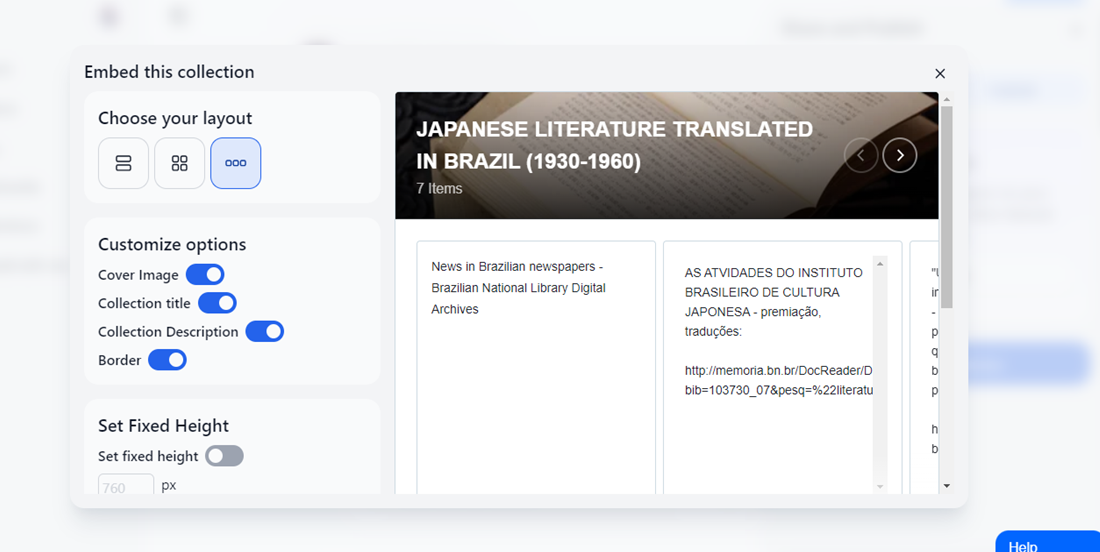
Within the “Share” section you can also configure the collection so, for example, that anyone with the link can see it or add items to it. You can store unlimited collections in an individual free account, but only 3 of them can be collaborative, and only 4 can be published. If these restrictions work for you, as it works for me, then I believe this resource can be of good help. Of course, the total amount of “hours earned” varies across personality, subject, project length, and so on.

 The Digital Orientalist
One thought on “Saving, organizing, and sharing data with Wakelet”