
In my previous posts for the Digital Orientalist, I have introduced eScriptorium – a virtual research environment for transcribing historical documents – and OCR models for South Asian languages. In this series, we will delve into Kraken, the OCR/HTR engine associated with eScriptorium. Here, we start with the steps involved in training custom OCR/HTR models for recognition tasks in Kraken.
Kraken, in recent years, has emerged as one of the best freely available open-source OCR engines – the other alternatives being Tesseract and Calamari. It remains the best open-source package for Handwritten Text Recognition (HTR) or for transcribing connected scripts. You can find out more about Kraken from its official documentation.
Installing Kraken
Kraken works best with Linux and MacOS operating systems. If you’re on Windows, you have the option to explore the possibility of configuring Windows Subsystem for Linux (WSL) on your machine, though it’s worth highlighting that Kraken do not provide support for Windows.
The official documentation for Kraken offers guidance on installation using pip and conda. I prefer to install it via pip – the package installer for python. From our root directory, we follow these steps:
mkdir kraken
cd kraken
The make directory (mkdir) command creates a new directory named kraken, after which we navigate into it using the change directory (cd) command.
Now, we will set up a virtual environment within this directory. For this, we can use python’s “venv” module, like this:
python -m venv venvand then activate the virtual environment with:
source venv/bin/activate Additionally, if you have access to a graphical processing unit (GPU), you can leverage hardware acceleration for training models by setting up CUDA on your computer.
Now, following Kraken’s documentation we can run the following:
pip install krakenor
pip install kraken[pdf]if you care for pdf and multi-image support in your workflow, run the latter. This will take a while.
Preparing Datasets for Training
Kraken offers the ketos command line utility for a variety of tasks, including recognition and segmentation training. To train a recognition model from transcriptions prepared in eScriptorium and exported in either ALTO (XML) or PAGE (XML) formats, we use the ketos train command. For this, we first have to export our transcription files along with their corresponding images from eScriptorium, and then unzip them in a directory.
While it is possible to train a recognition model from image/XML pairs, it is recommended to convert the transcription files into a binary dataset using the ketos compile command. This command takes a number of options. We can find out more about these options with:
ketos compile --help
The input to this command can be the path to our transcription XMLs. Alternatively, we can also create a manifest file that has the relative paths to our transcription files. To generate this manifest file, you can use this command:
find path/to/xml/directory/ -type f -name “*.xml” > output.txtThis command looks for XML files within the specified directory and its subdirectories, and then writes a list of their file paths to a text file called “output.txt”. For example, if the XML files are in a directory named “data/xml/”, we use “data/xml/” as the relative path in the command. Following this, we can simply do:
ketos compile -F output.txt -f altowhere -f is short for --format-type of the training files, which in this case is ALTO (XML).
This will create a binary dataset named dataset.arrow in our current working directory. In case your transcription files have predefined tags for train, validation, and test sets, ketos compile will honor them by default. If you don’t want to serialize your data as per the predefined tags in your transcription files, you can add the --ignore-splits option to your command:
ketos compile -F output.txt --ignore-splits -f altoOr provide a random training, validation, and test spilt of your choosing:
ketos compile -F output.txt --random-splits 0.8 0.1 0.1 -f altoWith this split, the train set receives 80% of the data, while validation and test sets receive 10% each.
Now, we’re ready to use this binary dataset to train and test our recognition models.
Training Recognition Models in Kraken
For training recognition models, Kraken provides the ketos train command. This command takes a variety of options that can be tailored based on the type of training data and the model we aim to train. See the official documentation for a full list of these options, or check out the best practices for training a recognition model with Kraken.
The simplest way to start training a model from scratch is by passing the binary dataset to the ketos train command.
ketos train -f binary -o (path/of/the/directory/where/you/want/to/save/the/model/and/the/model_prefix) dataset.arrowThe -d or --device option lets you set the device you wish to use for training. The default is cpu, so there is no need to specify it, however if you have set up a GPU on your computer, use:
ketos train -f binary -d cuda:0 -o (model_prefix) dataset.arrowIf a model for your script already exists, it’s more advantageous to adapt it for your collection of texts by fine-tuning it on examples from your corpus than to train a model from scratch. One way to find out whether a recognition model exists for your script is to use the kraken list command:

Kraken’s official documentation provides further details on this here. Another way is to seek assitance from people experienced with Kraken and eScritorium in this gitter channel.
If a relevant model already exists, we have two methods to fine-tune it using new examples, depending on the nature of the task. If you want to improve an existing base recognition model to transcribe a specific book more efficiently, the Train tab within eScriptorium should be enough.
You can begin by using a relevant model to transcribe a few pages within your eScriptorium instance, and then prepare those pages for training by correcting errors. Now, select the pages you have corrected, press the Train tab, select Recognizer, choose the model that you want to fine-tune, fill the rest of form in the pop-up window, and hit Train.
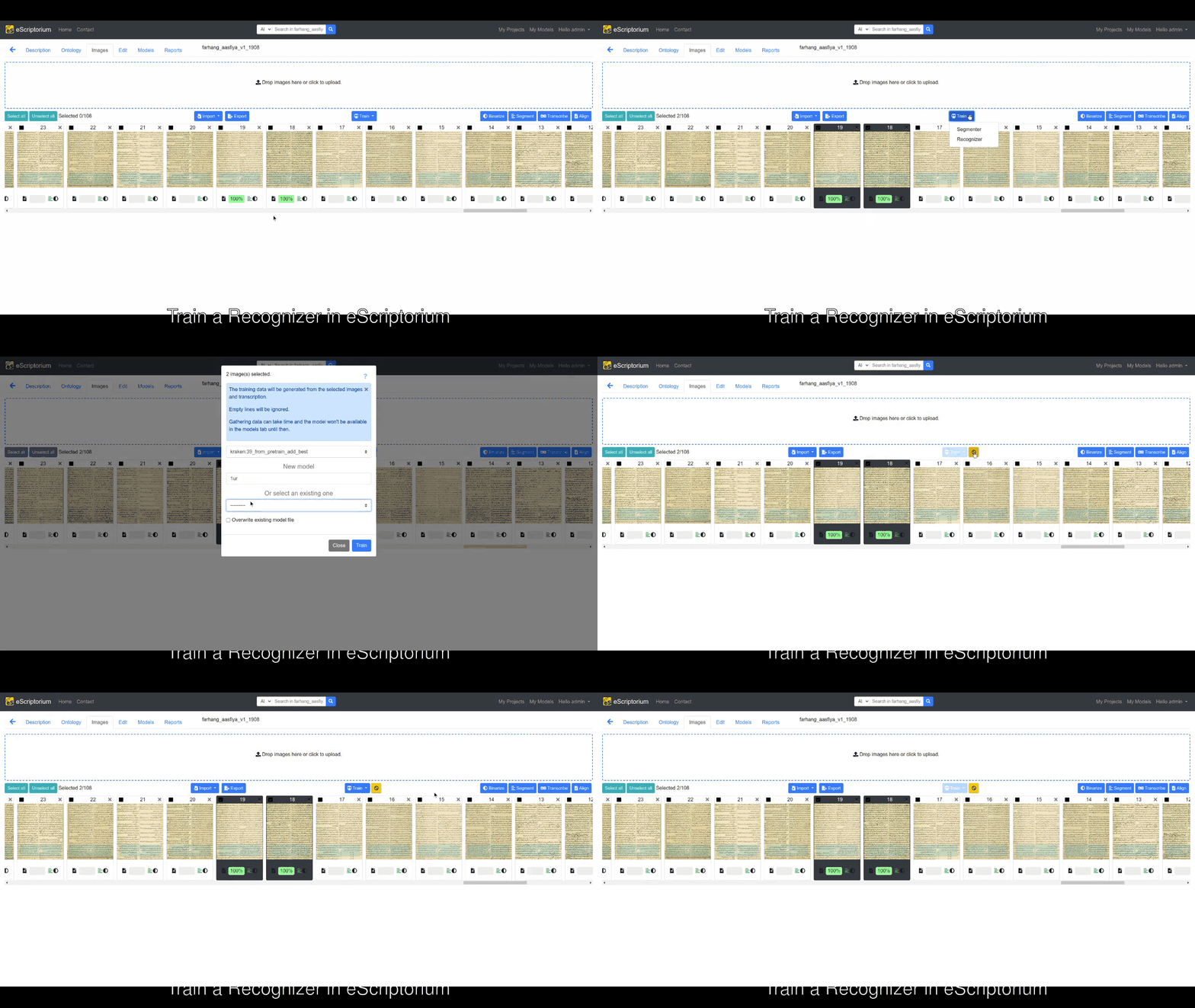
This will start the training by using default hyperparameters in Kraken. Needless to say that this is the easiest way to fine-tune an existing model.
For anything more complex, such as adapting an existing model for a set of typefaces or hands in your corpus or training a model from scratch, training with Kraken as a standalone tool offers a lot of flexibility. After preparing the dataset as shown in the examples above, simply load an existing model and fine-tune it with the --resize option:
ketos train -f binary -d cuda:0 --resize both -i (path/to/an/existing/recognition/model) -o (model_prefix) dataset.arrowThe --resize option can take four different modes. It is recommended to use new or both. Both these modes achieve the same thing, i.e. ensure a precise alignment of the characters in the new model and the new training set by adding new characters from the new training set and removing unused ones from the base model.
Usually the default hyperparameters in Kraken work well for most use cases, however I have benefitted from experimenting with lower learning rates, which is given by the -r or --lrate option. Kraken’s documentation recommends a learning rate of 1e-3 or 0.001, but in my work, I have seen better results for a connected script like Nastaliq with a learning rate of 1e-4 or 0.0001.
ketos train -f binary -d cuda:0 -r 0.0001 --resize both -i (path/to/an/existing/recognition/model) -o (model_prefix) dataset.arrowDuring my experiments, a low learning rate such as 0.0001 in conjuction with the cosine --schedule yielded reliable results when fine-tuning a pretrained model derived from 150,000 lines in an unsupersvised fashion for Nastaliq Urdu.
It is possible for our GPU memory to not be fully utilized when training a recognition model with a batch size of 1. In this case, we can improve efficiency by increasing the batch size, given by the -B option, till the GPU memory is fully utilized. When doing this, it is recommended to adjust the learning rate by the square root of the batch size. For example, if we take the learning rate as 0.0001, but increase our batch size, -B, to 4, we will have to adjust our learning, -r, to 0.0002.
ketos train -f binary -d cuda:0 --resize both -i (path/to/an/existing/recognition/model) -o (model_prefix) -B 4 -r 0.0002 dataset.arrowAdditionally, it’s useful to apply unicode normalization to our data with the -u option. This option can take any one of the four types of unicode normalization forms. Choosing one from these four depends a lot on the writing system of our corpus, and on the nature of our downstream tasks such as text comparison and collation.
In my work, I have used both NFD (normalize from decomposition) and NFC (normalize from composition). In NFD, characters are decomposed into their constituent base characters and combining characters (such as accents). For example, the single precomposed character “é” would be normalized to “e” followed by the combining acute accent character. NFC, on the other hand, is the opposite of NFD, which means that it preserves the composed form. In NFC, the same precomposed character “é”, which is made up of “e” followed by an acute accent, would be retained in its precomposed form “é”.
To pass the unicode normalization of our choice during training, we can simply append the type of normalization that we wish to use to the -u option like this:
ketos train -f binary -d cuda:0 --resize both -i (path/to/an/existing/recognition/model) -o (model_prefix) -B 4 -r 0.0002 -u NFC dataset.arrowEvaluating Recognition Models in Kraken
For evaluating the recognition model, Kraken offers the ketos test command. This command takes a model, an evaluation file, and a test set, and generates an evaluation report for the model. In addition, we can change the default batch size with -B or --batch-size option, and also specify the device we want to use for processing with the -d or --device option. Furthermore, it is better to provide the format of our test files with the -f or --format-type option. Lastly, I also specify the same unicode normalization that was used during training with the -u option.
ketos test -B 64 -d cuda:0 -f binary -u NFC -m (path/to/the/model/you/want/to/evaluate) -e test.txt (path/to/your/test_set)
In case you have compiled your binary dataset with the --random-split option, you can pass the same binary dataset to this command that you used during training. For my work, I often prepare a separate test set by randomly selecting one or two sample images from each book that I use for training. Following this, I compile these files into a binary dataset and use this as my test set for the ketos test command. This makes it easier to determine the model’s performance on new, real-world instances that are similar to the training data yet previously unseen by the model during training.
In the upcoming post, we’ll guide you through the steps for training a segmentation model in Kraken. Stay tuned!

Hello! Such a great work. Super useful. If it can be of any help, there is a little typo:
ketos compile -F output.txt --random-splits 0.8 0.1 0.1 -f altothere is no s to splite 😉