
The previous post in this series delved into the process of training text recognition models in Kraken – the OCR/HTR engine associated with eScriptorium, which I introduced in another series. In this post, we will learn about Kraken’s segmentation model and the process of training our own segmentation models for layout analysis tasks.
In a typical OCR/HTR pipeline, layout analysis involves identifying text regions on a page, marking the lines within these regions, and subsequently sequencing the lines in the correct reading order. To automate this process for intricately laid out historical documents, we typically need to train a layout analysis or segmentation model.
Kraken’s default segmentation model in its current state performs very well for simple single column layouts with uniform text flow, especially in printed documents. However, this default model has limitations, particularly in distinguishing multiple region types on a page, such as differentiating marginal text from the main text. Moreover, it predicts generic labels for regions and lines on the page, i.e., text for regions and default for lines. It also struggles with predicting baselines in non-Latin script documents, such as Nastaʿlīq lithographs and manuscripts.
The layout of historical documents is often not that straightforward. Documents in complex, multicolumn layouts with nonlinear text flow are particularly challenging. Think periodicals, newspapers, magazines, or documents with copious margin notes. Often, there is a need to introduce greater granularity in the labeling schema to distinguish different regions or lines on the page by their types. A good example of such labeling schema or ontology is the SegmOnto project that provides guidelines for labeling multiple region and line types in historical documents, such as MainTextZone, MarginalTextZone, RunningTitleZone, NumberingZone etc., or different lines types such as DefaultLine:prose and DefaultLine:verse.
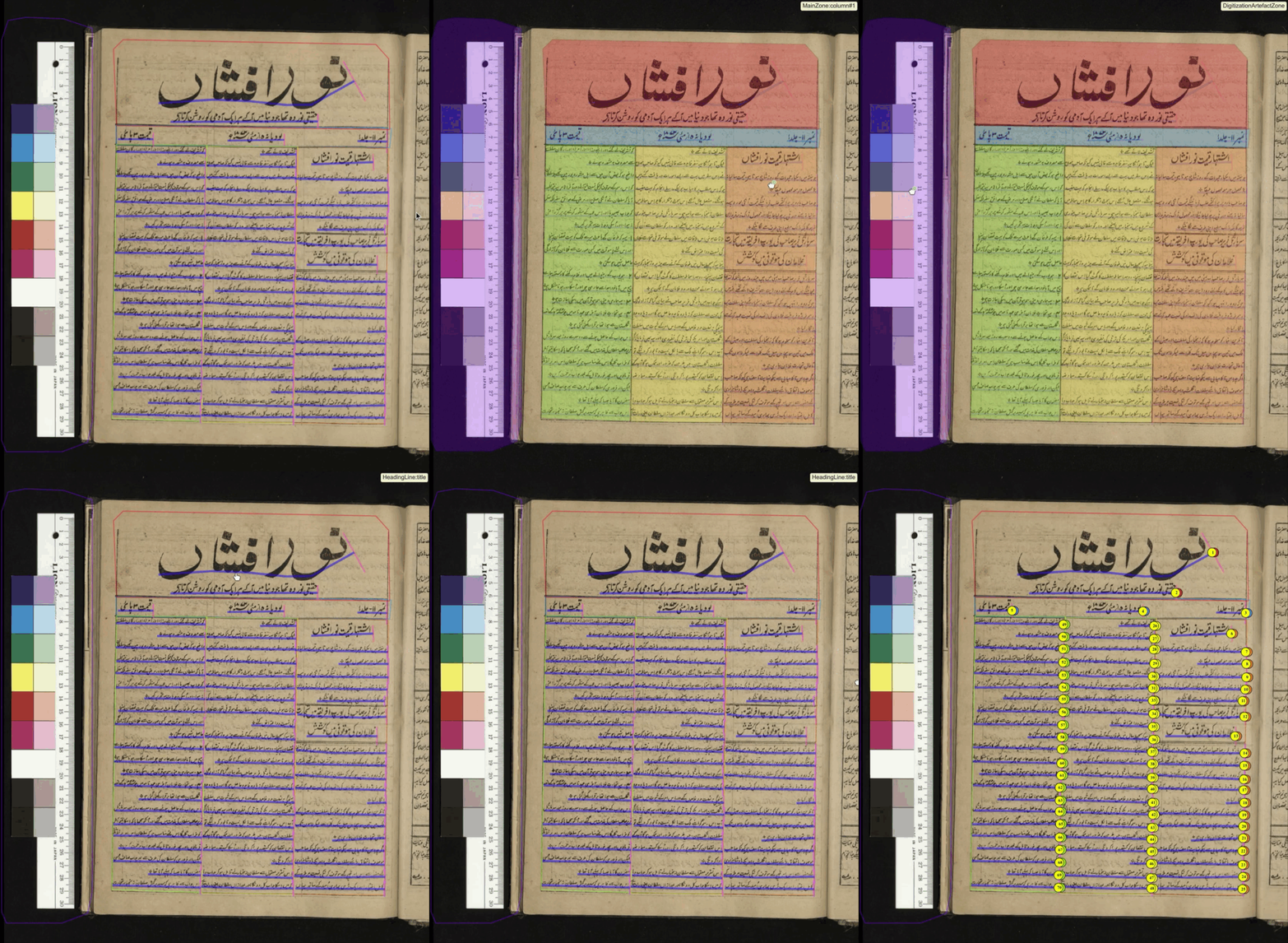
For such use cases, we have to compile training data and use it to train our own custom segmentation model.
Training Segmentation Models in Kraken
Kraken provides the ketos segtrain command for training segmentation models. This command line utility is fairly flexible as it provides a number of options to modify the training behavior.
ketos segtrain --help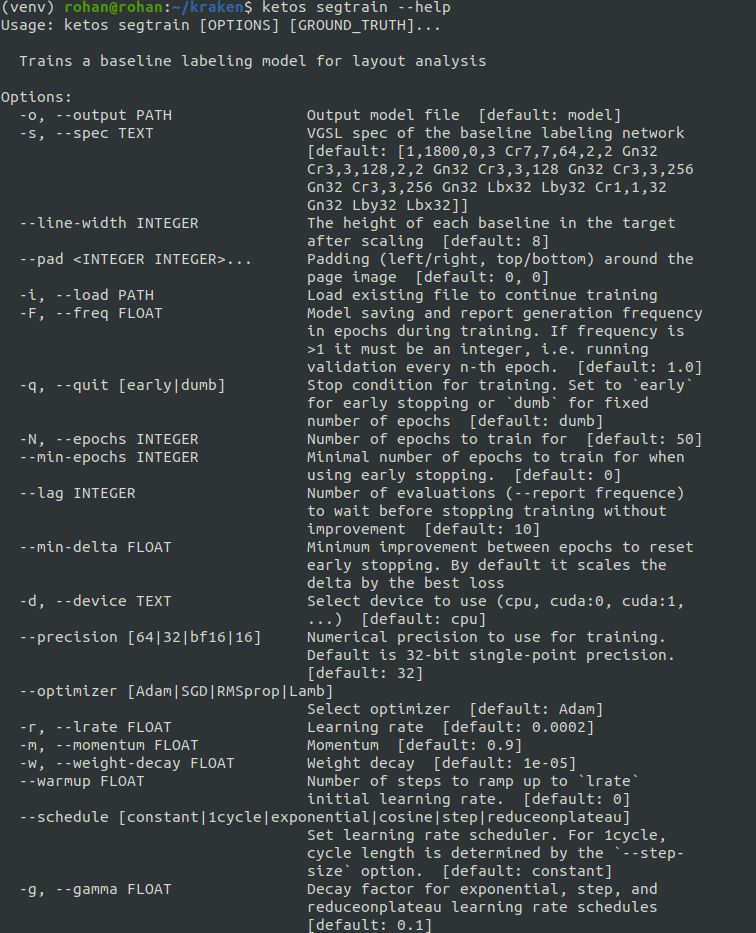
Training segmentation models in Kraken from scratch is very resource intensive as it requires a considerable amount of labeled data, and the training remains impractical without sizable GPU memory. Fine-tuning an existing model is a more practical option. Here, we can either start with a custom segmentation model trained on data similar to our use case, such as the ones available here, here, or here. Or simply fine-tune Kraken’s default segmentation model with around 30-50 pages of labeled data for book specific tasks.
It is possible to train a segmentation model within eScriptorium, and eScriptorium’s official documentation explains this process very well. For this, we can start by segmenting our pages with an existing model, which could either be Kraken’s default blla.mlmodel that comes preloaded into eScriptorium or someone else’s custom segmentation model.
To train a more complex model for a variety of layout types, using the ketos segtrain utility from the command line is our best bet. We can start this process by exporting data from eScriptorium, unzipping the files, and creating a manifest file as explained in part 1 of this series:
find path/to/xml/directory/ -type f -name “*.xml” > output.txtNow we can initiate training with the ketos segtrain command. To train from scratch the command in its basic form looks like this:
ketos segtrain --d cuda:0 -f alto -t [path to manifest files] -o [path to where you want to save your model]Or like this if we wish to fine-tune an existing model with the --resize option in the both mode:
ketos segtrain -d cuda:0 -f alto -t [path to manifest files] --resize both -i [path to a preexisting model] -o [path to where you want to save your model]
This command works the same way as the ketos train command for recognition training, which we discussed in part 1 of this series. The -d or --device options lets you choose the device you want to use for training, so if you have access to a GPU, pass cuda:0 to the -d option. The -f or --format option takes the format of files used for training. There are a number of formats we can use to train a segmentation model in Kraken. Since I prefer the ALTO (XML) format, I have used alto in the command.
By default, ketos segtrain will randomly allocate 90% of the training data in the manifest file to the train set and the rest to the validation set. But we can override this default partition by providing our own validation set with the -e or --evaluation-files option. The latter is also recommended for segmentation model training in Kraken’s official documentation, particularly when the training data do not have too many less frequent region or line types.
Although the majority of default hyperparameters in Kraken’s ketos segtrain command tend to be effective for most use cases, some alternatives have yielded significant gains in my experiments. Most importantly, it can be beneficial to experiment with different values for the number of training epochs, specified by the -N or --epochs option. By default, Kraken’s segtrain module is set to run 50 epochs. I have seen better results by training for -N 70 with around 1,000 pages of labeled data. However, it is important to note that training the model too long on not enough training data runs the risks of overfitting — a scenario where the model performs very well on the training data but doesn’t generalize to unseen data.
As early stopping is not the default setting in the ketos segtrain command, we can simply modify the number of epochs with the -N option and set guardrails to avoid overfitting by activating early stopping with the -q or --quit option set to early. This will stop training if the model fails to see any improvement for a set number of epochs, given by the --lag option, which is set to 10 in default mode. We can refine this further by ensuring that the training runs for a minimum of 50 epochs — the recommended number — with the --min-epochs option. The command looks like this:
ketos segtrain -d cuda:0 -f alto -t [path to manifest files] -N 100 -q early --min-epochs 50 --resize both -i [path to a preexisting model] -o [path to where you want to save your model]In some cases, we may want to train a region-only or a baseline-only model from our data. This method of training a model with fewer features, in my experience, results in a narrower, but more robust model, particularly when we are limited by annotated data. Using such models may assist in quickly producing training data for a variety of layout types. This method also remains less resource intensive.
For now, it is not possible to train such task specific segmentation models within eScriptorium. However, the ketos segtrain utility, provides the --suppress-regions or --suppress-baselines option to achieve this. The command to train a region-only model can look like this:
ketos segtrain -d cuda:0 -f alto -t [path to manifest files] --resize both -i [path to a preexisting model] -o [path to where you want to save your model] --suppress-regionsOr like this for a baseline-only model:
ketos segtrain -d cuda:0 -f alto -t [path to manifest files] --resize both -i [path to a preexisting model] -o [path to where you want to save your model] --suppress-baselinesWhen using such task specific models in eScriptorium, it’s better to first apply the region-only model, and then the baseline-only model. When executed in this sequence, the baselines will get linked to their corresponding regions automatically, which is important to sequence the reading order of lines. It is crucial that we also select the correct function for the task we want to achieve from the form that shows up after pressing the Segment tab in eScriptorium. Or uncheck the Override checkbox, which is always checked by default; otherwise the model will end up overwriting any existing layer of segmentation. eScriptorium’s official documentation has more details on how this works.
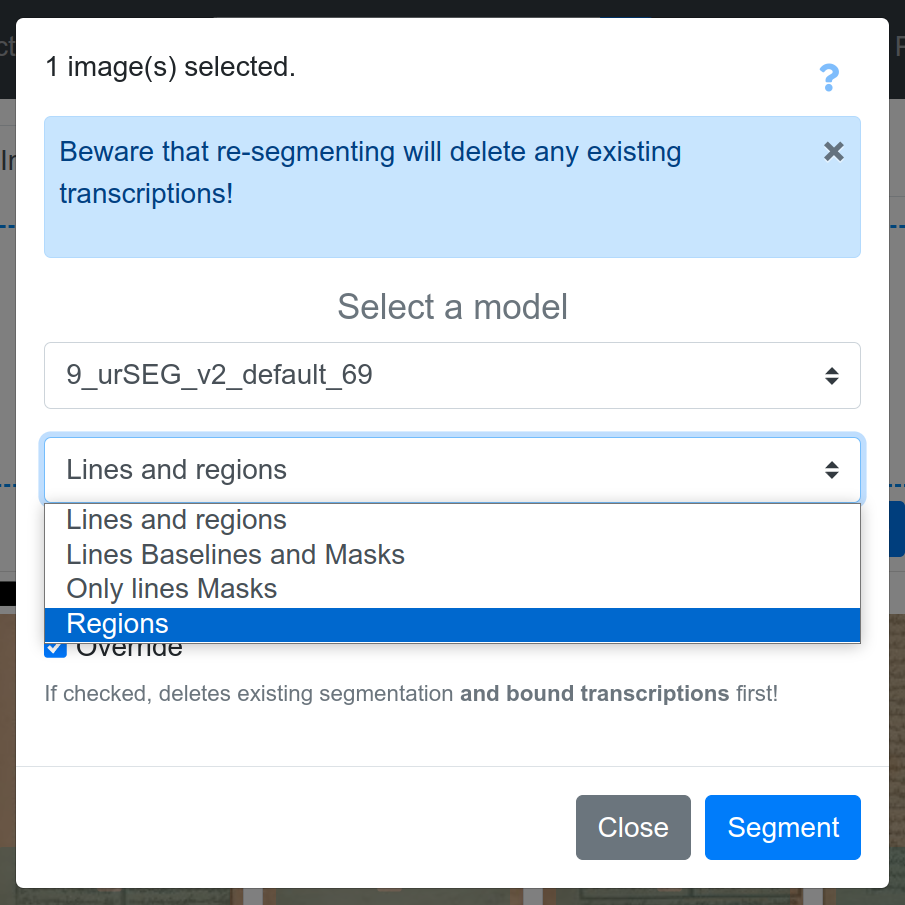
Furthermore, Kraken provides the -vr--valid-regions and the -vb or --valid-baselines options to train on specific region/line types in our data. This is particularly useful when the underlying data has a lot of granularity, but we want to train a model on fewer, more frequent types. We can simply use the --valid-regions or the --valid-baselines options multiple times and filter out the regions and line types that we don’t want the model to learn during training. For example:
ketos segtrain -d cuda:0 -f alto -t [path to manifest files] --resize both -i [path to a preexisting model] -o [path to where you want to save your model] -vr MainTextZone -vr MarginalTextZone -vb DefaultLine -vb HeadingLine [and so on....]In addition, the -mr or --merge-regions or the -mb or --merge-baselines options can be used multiple times to combine two region/line types into one. This option comes handy when the goal is to quickly modify the typology of annotations in our data. Both -mb and -mr takes the input in the target:source format, like this:
ketos segtrain -d cuda:0 -f alto -t [path to manifest files] --resize both -i [path to a preexisting model] -o [path to where you want to save your model] -vr MainTextZone -vr MarginalTextZone -vr Main -vb DefaultLine -vb default -vb HeadingLine:title -mr MainTextZone:Main -mb DefaultLine:defaultHere, -mr MainTextZone:Main will treat all regions labeled Main as MainTextZone and -mb DefaultLine:default will treat all lines labeled default as DefaultLine. Just like -vr/-vb options, we can use -mr/-mb multiple times to merge as many region/line types as we want.
Finally, it is possible to slightly offset the location of the reference lines that the model will learn from annotations. For this, there are three options: -bl or --baseline, which is the default setting, -tl or --topline, and -cl or --centerline. In -bl, the model’s predicted reference lines follow the lower boundary of text lines. Similarly, in -tl, the reference lines trace the upper boundary, whereas in -cl, they align with the center of text lines.
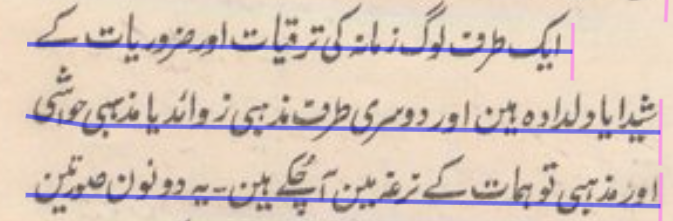
--baseline in Nastaʿlīq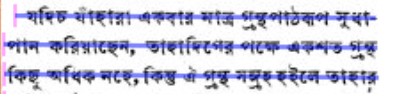
--topline in Bengali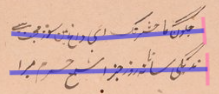
--centerline in Handwritten NastaʿlīqThe location of the predicted reference lines is crucial for computing masks or bounding polygons, which are nothing but the upper and lower edges or boundaries of the text in a line. In -bl, the polygonization extends upwards, whereas in -tl, it extends downwards. In contrast, -cl is useful for top-to-bottom East Asian scripts or scripts with vast vertical variation, such as handwritten Nastaʿlīq. Since these bounding polygons are the input for recognition tasks, the location of the reference lines with respect to the actual text lines is crucial for the quality of recognition results.
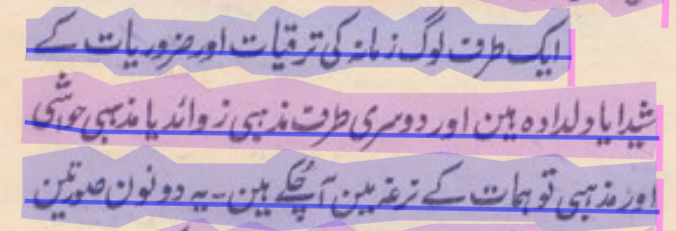
--baseline in Nastaʿlīq — with masks
--topline in Bengali — with masks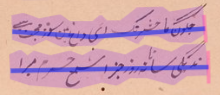
–centerline in Handwritten Nastaʿlīq — with masksI have experimented with both -bl and -cl for Nastaʿlīq where text lines hardly follow rigid y-axis guidelines, but almost always use -tl for Bengali and Devanagari as the text lines in these are invariably aligned by their top.
The correct choice for the location of the predicted reference lines depends on the script. Moreover, it is important to annotate the location of the reference lines consistently across the training data, as the model will learn to predict them from these examples.
Enjoying what you have read? We publish all things Digital Humanities twice a week with a sharp focus on African, Asian, and Middle Eastern Studies. Keep an eye out for more!

 The Digital Orientalist
One thought on “Train Your Own OCR/HTR Models with Kraken, part 2”