
Introduction
In my last post, I explored tools in a software package called Criticus that helps move from transcription to collation. I mentioned a big problem that Criticus helps solve, which is that the collation editor cannot use your TEI transcriptions. The collation editor expects JSON as input, and Criticus helps researchers convert their XML transcriptions into the appropriate JSON files needed. In this post, I will now demonstrate how to take these JSON files and use them in the collation editor to collate any number of manuscripts of the same Greek text.
Standalone Collation Editor
Catherine Smith developed the Standalone Collation Editor, a GUI wrapper around collateX that works with the local filesystem on a user’s computer. The collation editor is a powerful piece of software but requires manual setup. Also, the editor relies on Python as a dependency, but Catherine has not updated the software in a while. Therefore, users must utilize an older version of Python as some of the syntax is no longer compatible with more recent versions of Python. Luckily, David Flood (the developer of Criticus) also maintains his own fork of the Standalone Collation Editor, which is compatible with Python 3.6+. He has also added more user-friendly changes, such as a better Greek font, Unicode underdots for uncertain letters, etc. I recommend using David’s fork because of these added changes and because he actively maintains it. You can download either version from GitHub by going to the repositories linked above, clicking “Code,” cloning the directory, or downloading a ZIP.

Criticus
The editor’s documentation includes instructions for starting the software, but this requires some manual configuration and using commands in the terminal. Instead, David’s software, Criticus, provides a GUI for configuring and starting the editor. Starting Criticus also requires using the terminal but requires only one command. You can find more instructions for downloading and starting Criticus in this post. Once Criticus is open, select “Configure Collation Editor” to open the configuration window.

Once here, simply select the blank configuration file in the Collation Editor directory. Locate the configuration file at the path: your_copy_of_standalone_editor_directory/collation/data/project/default. Users can create multiple projects in the project directory, each containing its own configuration file. Give the project a title, and select one of your transcriptions to serve as the basetext. The collation editor will compare all other manuscripts against the selected basetext. Finally, manually add the names of every witness you want to include in the collation. These witnesses should match the name of the directories containing the JSON files from the process detailed in the last post. Once you set all this up, click “Start Collation Editor”.
Collating
Catherine Smith primarily tested the collation editor in the Firefox Browser, so she and David recommend using Firefox for the collation editor. Criticus should automatically open Firefox to localhost:8080 once the user clicks “Start Collation Editor,” if not, you can go to localhost:8080 in your browser. The landing page should look like the following.

From here, you can either load a saved collation to continue working on it or start a new one. The editor collates one verse at a time, and you must specify the verse reference in the text input box. The reference will be whatever naming convention you have created in your transcription. To quickly check this, look at the JSON files created by the tool that converts your TEI XML transcription to JSON files. The name of each JSON file is what you will put into this text box minus the file extension. In the above example, I am collating the fifth “verse” of the Prologue in the Euthalian Apparatus for the Catholic Epistles. The naming convention I came up with is BCAthProl. There isn’t a chapter or verse numbering system, but I inserted verses in the transcription at all the places where there were punctuation marks ending a sentence in the base text I used, which was von Soden’s edition of the Euthalian Apparatus. I did this to make referencing easier and with the collation editor in mind from the beginning. In this case, I am interested in collating the fifth “verse,” so my query in the select box is BCathProl.1.5. Yours will undoubtedly be different depending on the schema you have developed. The button at the bottom of the page allows the user to choose and tweak the algorithm that detects variation units. I have just used the default settings and will modify the variation units manually in the following steps. When ready, click on “Collate Project Witnesses” to begin.
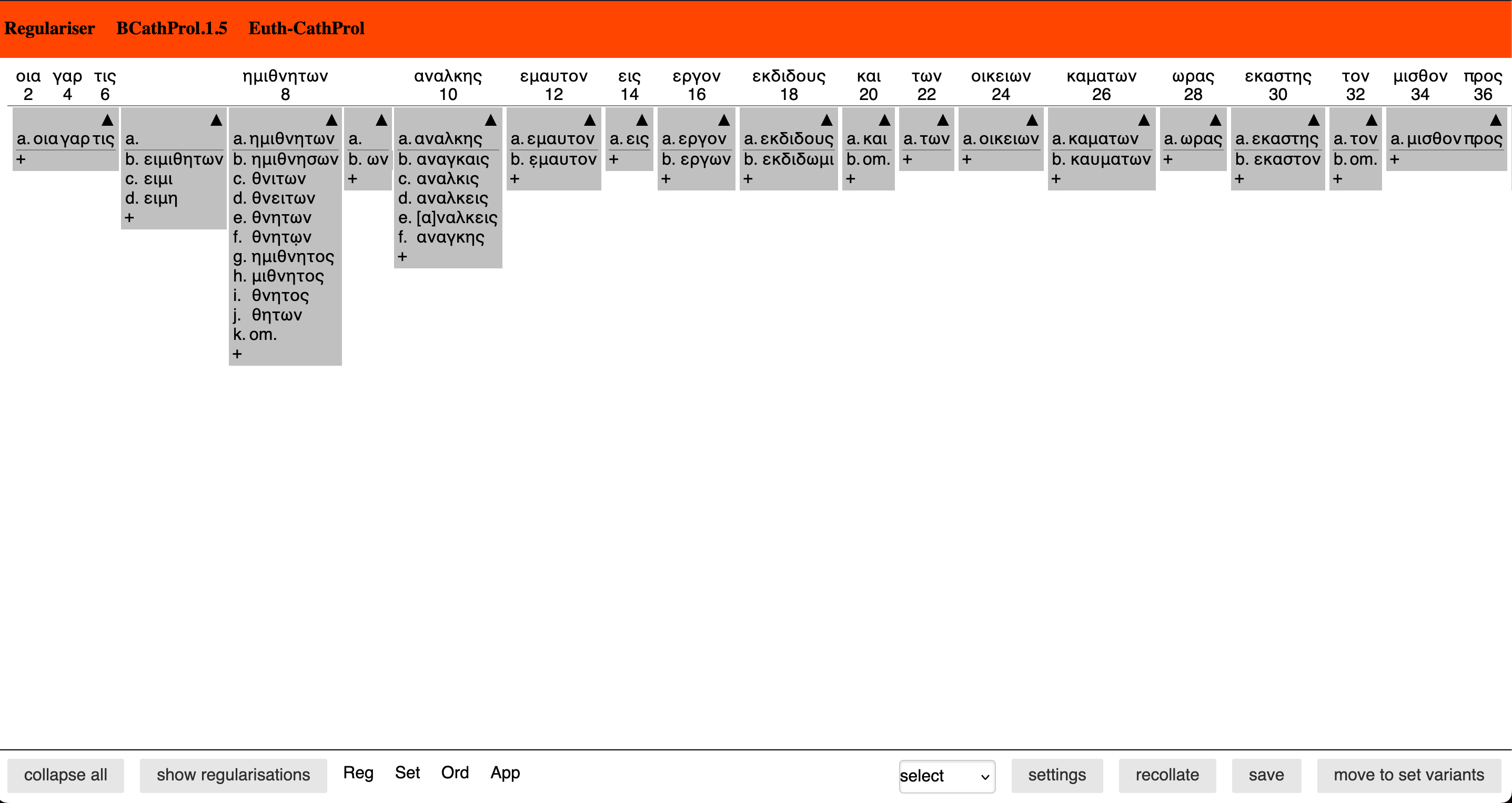
The collation editor displays the verse with every word given an even-numbered index. The algorithm may place some words in the unnumbered blank spaces, but you can manually move these later. Each word has a dropdown box below it showing all the variations at this index amongst your transcriptions, with each reading ordered alphabetically. If you hover your cursor over a reading, a pop-up box shows which manuscripts contain that particular reading. As you work through the collation, this is a great place to catch any potential errors in your transcription. You can always double-check your transcription and the manuscript if you see a reading that doesn’t seem right. Make any necessary changes, and reconvert the verse into the appropriate JSON files. You can then start the collation over.
The collation contains three major stages. First, you regularize any variations that you would like. These include the omission or inclusion of a final ν, spelling mistakes that do not affect meaning, nomina sacra, etc. To do this, simply click on the reading you wish to regularize and drag it onto the word you want to regularize it to. Another pop-up box will appear, prompting you to decide whether this regularization should be executed at this place or everywhere it occurs. You can also specify what kind of regularization is happening here and any clarifying comments. The editor will save these choices in the config file, so they will persist when the user reloads the collation file for future work. You may notice that some words need to be regularized but can’t because the algorithm did not place them in the correct variation unit. You can move the word(s) into other variation units in later stages of the collation, and you can still regularize words at these later stages. Once you have regularized all you can, you must recollate the verse before moving to the next stage by clicking “Recollate” at the bottom.
The next stage is setting the variants. Here, you can move variation units by dragging and dropping the variant into other adjacent units. You can also right-click the unit and split the words or readings into their own boxes for more fine-grained customization. In verse five, I combined the unit in the blank “seven” index with index eight because I think these variations are related.

The word in the base text is ημιθνητων, and there are several variant readings of this word. Some of them are differences in form, but others are totally different words. One variant is ειμιθητων, and there are several variants close to this in which the word is split. Some of these readings are spelling differences that create nonsense words. These are orthographic errors in which the diphthongs sound the same as the vowel of the actual word. This variation unit needs to be cleaned up a bit for easier reading.

Some of the readings have now been regularized to reading “f” showing these orthographic errors. All the other readings have been deemed meaningful by myself as the editor. You have complete control over setting this up as the user wishes. After making all the appropriate changes, click “Move to Reorder Variants” to enter the final collation stage. Here, the unit can be cleaned up a little more by ordering the variants however you want. In my case, I’m mostly happy with the way it looks now, but I moved reading “i” to “f” because this form is closer to reading “e” with the word being split up.
Once happy with the result, click “save” and “approve.” This will export a single XML collation file for that verse. Repeat the above steps for every single verse and save the collation files in the same directory.
Criticus has one more tool that can combine all of these individual files into one collation file. To do this, select the “Combine Collation Files” button. You must select the directory that contains the individual collation files and input a value for “Starts With.”

I input “BCathProl” to combine every file containing at least this text at the beginning of the file. Select where you wish to save this file, and all of the collation files will be combined into one and saved at this location.
Conclusion
Now you have a single XML collation file with the results of comparing all of your transcriptions of an entire Greek text. This collation file can be used for all sorts of helpful things, like creating a text and apparatus of readings in a Word doc and for further analysis with other tools. These tools and use cases will be explored in my next post.

2 thoughts on “Collating Greek Manuscripts”