
In a previous post, I have highlighted the usefulness of notebooks for writing Python code. I mentioned tools like Jupyter Notebooks and Google Colab. In case you are not familiar with notebooks, the rundown is that they allow you to write code inside isolated blocks and run those blocks independently of other code blocks in the notebook. This means that you break up your code into individual pieces and just run the piece you are interested in without having to rerun the entire Python file.
These notebooks are great for exploratory coding, but, as a project grows, they become limiting. For instance, if you want to develop the code from that notebook into an app, software package, CLI, etc., you will have to rewrite it as an actual Python project. If you would also like to collaborate with others, Jupyter notebooks are notoriously difficult to track by git, making version control and collaboration difficult. There are online solutions to these collaboration issues, like Colab mentioned above, but their free services are often limited and you are eventually forced to pay for extra services/features.
These problems have been addressed with a recently developed tool called Marimo. These notebooks work just like the ones mentioned above, but they have a “superpower” the others do not. Marimo notebooks are just Python files! All the code behind the scenes looks exactly like code within a Python file, and their file extension is just .py. To set up Marimo and run the notebooks, just install Marimo in your project’s virtual environment. For me, I use uv to manage my Python projects so I would run uv add marimo.
Once installed, you can either use the main.py that uv initialized, or you can create any Python file you want, like notebook.py. Then, run marimo edit main.py (or whatever filename you want). This will open up your notebook as a web app inside your browser.
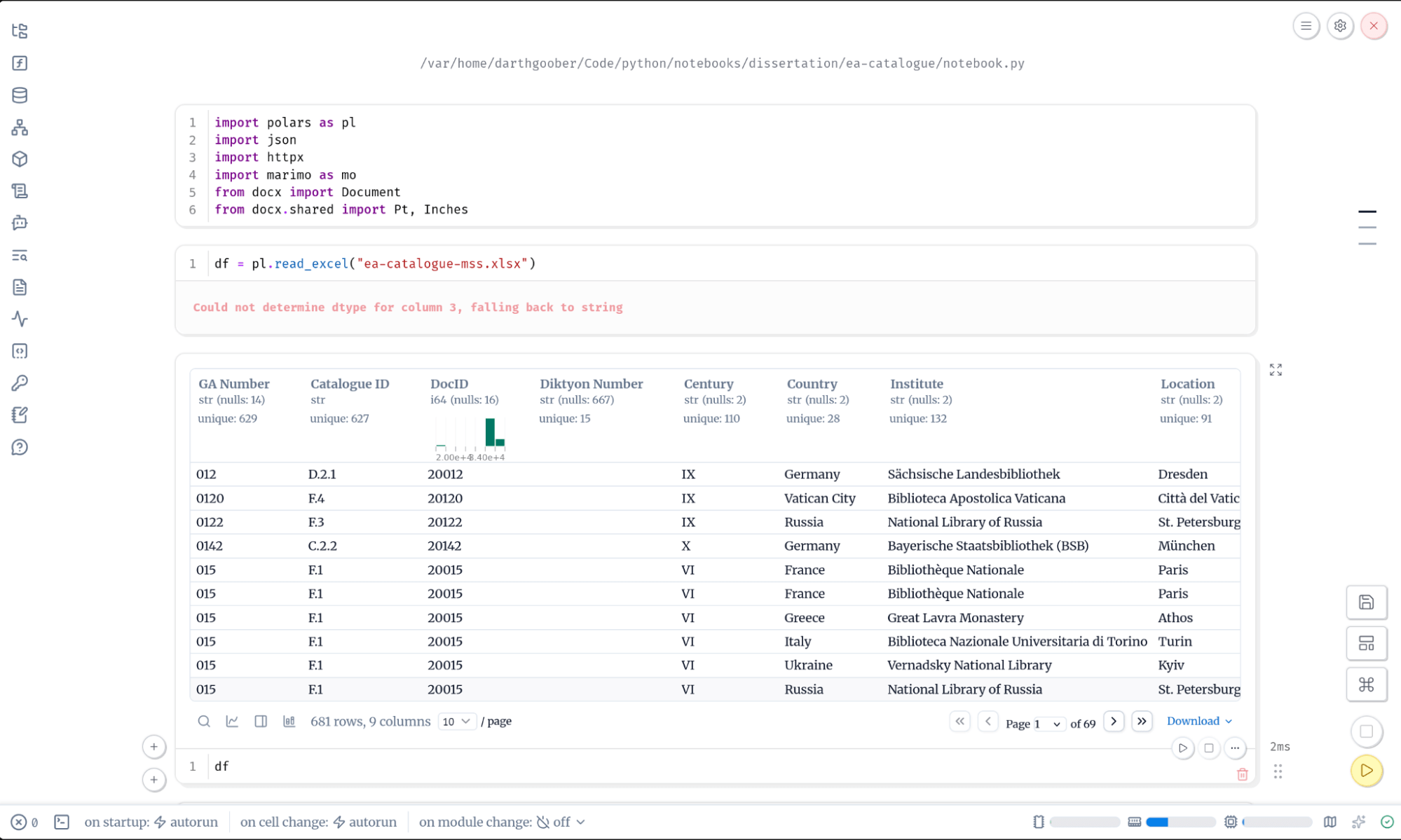
Figure 1. Example of the Marimo notebook user interface.
The interface of this notebook is sleek, but looks familiar enough if you have worked with notebooks before. Here, I am using the Polars package to load an Excel file and explore its data. When printing out the dataframe, some special features of Marimo quickly become apparent. The dataframe is automatically paginated so that you can easily view the whole dataframe. Basic visualization tools are baked in and can be toggled by clicking the icons on the bottom left. There is a search icon next to these icons allowing you to search within the dataframe without writing dedicated code. Likewise, clicking on the column headings allows you to filter and sort the data without any code. While writing code to find what you are looking for is far more effective and efficient, this provides you with a simple way to explore the data before jumping into the code itself.
Now, one particularly helpful feature of Marimo becomes evident when you start importing packages into your code, like I do in the first code block. When you do so, Marimo detects whether you have installed a specific package whenever you try to run it or not. A pop up will notify you and ask if you would like to install the package into your virtual environment. You will be prompted to select which package manager you want to use. Marimo will install whatever package you need via the package manager you are using in your current project. In my case, Marimo installed them all via uv, keeping thus everything nice and tidy.
Another helpful feature baked into Marimo is reactivity. Let’s say you have a variable declared in one code block, but you access it in another block. In other notebooks, if you change the data inside of the original variable, you would need to rerun the blocks that reference it. When you change the variable in Marimo, the other blocks are updated automatically. This is an incredibly helpful feature, but requires using unique names for everything. However, this reactivity can be toggled off.
Marimo notebooks also provide AI integration. You are able to connect your notebooks to many major AI providers. You can also connect your notebook to local models running on your own machine. Doing so provides the ability to chat with LLM within the notebook, use copilots to auto-suggest code, or even connect to AI agents, allowing the agent to write code in the notebook for you.
There are many other helpful tools and capabilities of Marimo notebooks that I am unable to cover here. For instance, there is even a way to convert Jupyter notebooks into a Marimo notebook! I would direct the reader to the docs of Marimo to explore some of these features further. Instead, what I would like to point out is that, if you were to open up your notebook file inside of your favorite text editor, you would see that all of this is just Python code.

Figure 2. Python code underlying the Marimo notebook used in this analysis.
All the code I wrote in the notebook is there. It is just encapsulated within some Marimo specific markup that I did not write. The Marimo markup is what delineates the code blocks. This is undoubtedly the “superpower” of Marimo. For one, this means that I can track the notebook inside of git and host it in an online repository. Doing so allows me to version control the notebook. I am also able to add others, who will be able to collaborate on their own computers, to the repository and everyone’s version of the notebook can be then synced.
But this is not all. The second major benefit of this feature is that Marimo notebooks can easily expand beyond Marimo. For instance, if you would like to develop the notebook into a CLI tool, you can use Python CLI frameworks directly in the notebook. Instead of running the file as a notebook, just run the file like you would any other Python file. With uv, this would just be uv run main.py. The file will run exactly like any other Python file and none of Marimo-specific code will get in the way.
You can even export the notebook as a Python script. Marimo will reorder your code blocks for you because it tracks each of the code block’s dependencies. All of this is done automatically, making the transition from notebook to complete Python project even easier. Marimo will add some markup to the resulting script that might need to be removed once the project expands beyond the notebook structure.
You can also create web app dashboards for your Marimo notebook. In the past, if I wanted to create a dashboard of my data to share with users, I would rework all of my Jupyter notebook code into a standalone Python file using something like Streamlit. This worked, but Marimo is so much simpler. Marimo contains many UI elements that are also reactive to your data. This includes writing Markdown that can have Python code rendered within it. An entire dashboard can be created using these elements, and once you are ready, run marimo run main.py instead of marimo edit. This will generate a web UI that is similar to the notebook look, but hides all the underlying Python code from the viewer, as shown in Figure 3.
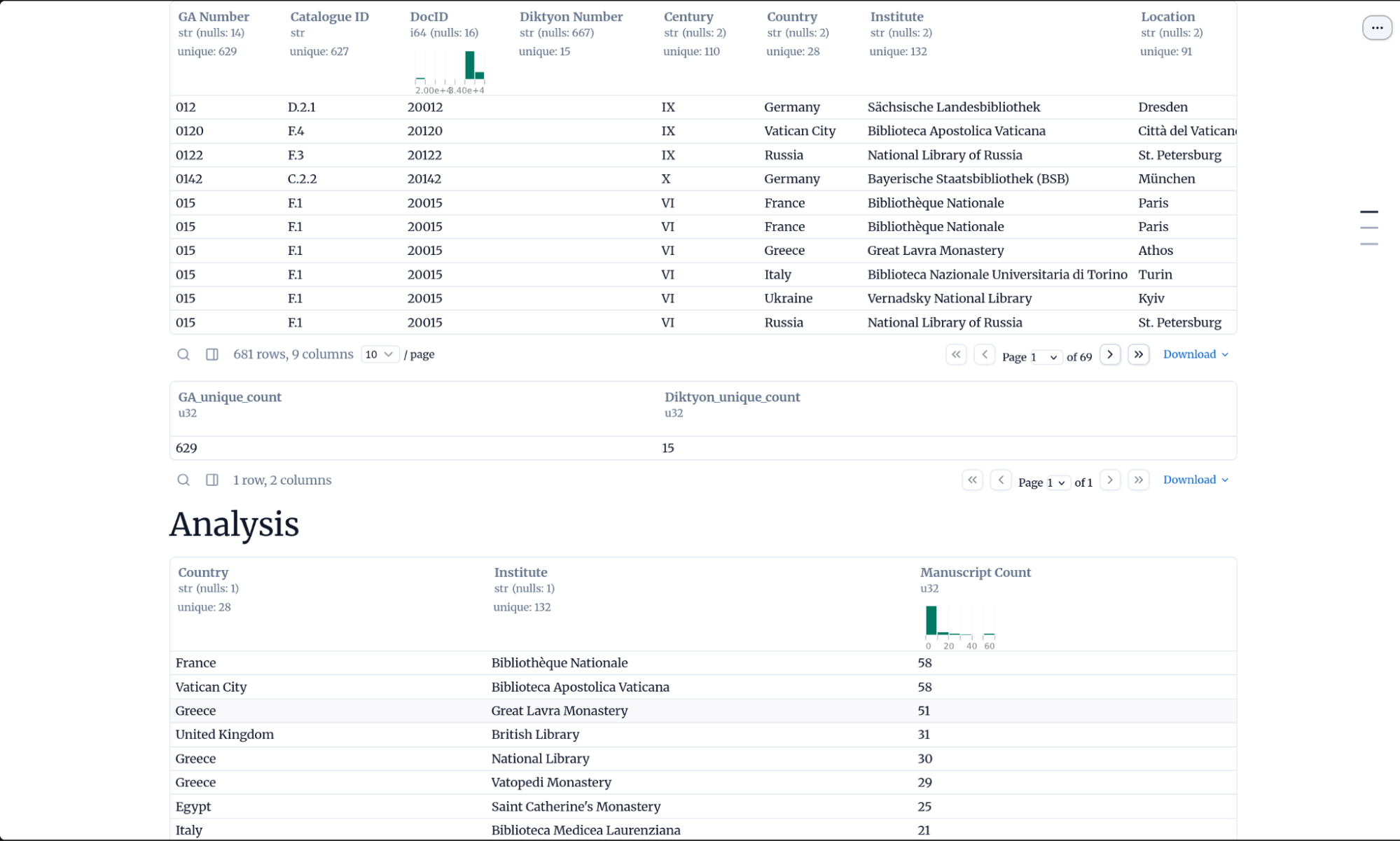
Figure 3. Run-mode view of the Marimo notebook, with Python source code hidden.
My example admittedly does not display many of the elements available, as I am still learning them myself, but you can see the difference. This is the same notebook pictured in Figure 1, but all the Python code is hidden. Instead, the only thing rendered are my dataframes. Even with this limited view, the dataframes themselves have the same basic visualization and filtering capabilities that are available in the notebook version. So, as long as the people you are sharing this with have Python installed on their computers, they can run your notebooks as web app dashboards, providing you with opportunities of sharing your data with others in an interactive way. The documentation in Marimo even demonstrates how you can declare your package dependencies within a Marimo code block, so users with uv don’t even have to worry about setting anything up. Just share the file with them and all they will need to do is run the command above.
This post only scratched the surface of this tool, yet I hope that it has demonstrated how user-friendly and powerful Marimo notebooks are. Integrating this tool into your Python projects will allow you to work faster and more efficiently with others. The notebooks also provide a solid foundation for developing your own tools and software for a wider audience, providing thus value not limited to your own research, but accessible to a wider community.

One thought on “Marimo Notebooks”