
Introduction
Many of the fields of study here on The Digital Orientalist rely heavily on images hosted online. In textual criticism in particular, images of manuscripts are the backbone of the research process. Most online manuscript images come with very good viewers that allow deep zooming, annotation, and other features that are extremely helpful for research. These images follow a set of open standards known as the International Image Interoperability Framework (IIIF), which makes this consistent environment possible. IIIF enables all sorts of powerful research capabilities that are too extensive to cover in a short article. I have become wholly dependent on these IIIF images for much of my own research, and many of my colleagues have as well. As powerful as these tools are, however, there are some downsides. Sometimes the holding institution of the images has network issues, and the images are unavailable for some time. In more extreme cases, the holding institution becomes the victim of a cyberattack, and all of its data, images, and related materials are held for ransom, as was the case with the British Library. Because of this, I spent some time exploring how I might provide a little more resiliency for particular manuscripts that I need regular access to. In this short guide, I will introduce a few tools that can help you set up your own local IIIF image server using images on your own device, while maintaining much of the functionality users have become accustomed to when working with these images.
Downloading the Images
Before you can serve images, you need to have some images to serve. You may already have images saved locally on your device. If so, that is great. I will explain more about what you can do with these images in the following sections. But what if you do not have any images saved locally? Fortunately, many websites with IIIF images provide ways to download them. One common method is to share the IIIF manifest.json file. The IIIF manifest is essentially the table of contents and instruction set for the digital object as a whole. It provides details such as what the object is, who it belongs to, how to display the images, and more. The IIIF website has a page listing many institutions that use the IIIF standard. After clicking on the repository you are looking for, the site often explains how to find the manifest file for each object, as demonstrated in Figure 1.

Figure 1. Example IIIF instruction to find the manifest file.
Once you find the URL for this manifest file, copy it. This link can be used in the Python CLI tool iiif-download. This handy little tool will download each of the images listed within an IIIF manifest while taking into account the different limitations and data specifications of institutions. Before using this tool, though, I must stress the importance of checking what permissions you have as a user of these images. You can do this by reading the license. If you struggle to find the license on the website, there is usually a link to the license in the manifest itself. Just open the URL to the manifest file in your browser, and near the top of the page, you should see a license tag with a link to it, as seen in Figure 2 below.

Figure 2. Link to the license in the manifest file.
Once you have determined that it is okay for you to download and use these images for research purposes and you have iiif-download installed, simply run iiif-download https://example.org/manifest, replacing the example with your own manifest link. This command is demonstrated in Figure 3.

Figure 3. Example iiif-download command.
You can also specify which directory to save the images in and what size images you want by following the instructions in the documentation. Once the download is complete, you now have local copies of the images on your computer.
Tiling the Images
Once you have downloaded the images, or if you already have images sourced from elsewhere, you will need to do a little extra processing to make these images IIIF-compliant. The images also need to be tiled to enable deep zooming. Tiling the images is the process of slicing the image into small squares at different zoom levels. The IIIF viewer will load these squares depending on what level of zoom you are using. Another handy CLI tool can automate this process, called iiif-tiler-rust. After installing this tool, run iiif-tiler-rust <path to image or directory of images>, and the tool will tile your images, organize the tiles into the appropriate directory structure, and create a new manifest file for your local images. This command is demonstrated below in Figure 4.

Figure 4. Example iiif-tiler-rust command.
You can customize some of the output, such as the zoom level and output directory. In my case, I set the output directory to the same one that contains the original downloaded images. This creates a new directory within it called iiif, and all of the tiles are stored there. Now you are ready to serve these images to an IIIF viewer.
Serving the Files
Now we need to serve those images so that a IIIF viewer in a browser will know what to do with them. The tool I used is http-server. This CLI tool allows you to create a server from a directory on your computer. Just specify the path to the directory with the images, the port number, and make sure you enable CORS, like this: http-server –base-dir <path to iiif> –port 8080 –cors. The terminal will then output a URL that you can use in a browser. There is an example of this in Figure 5 below.
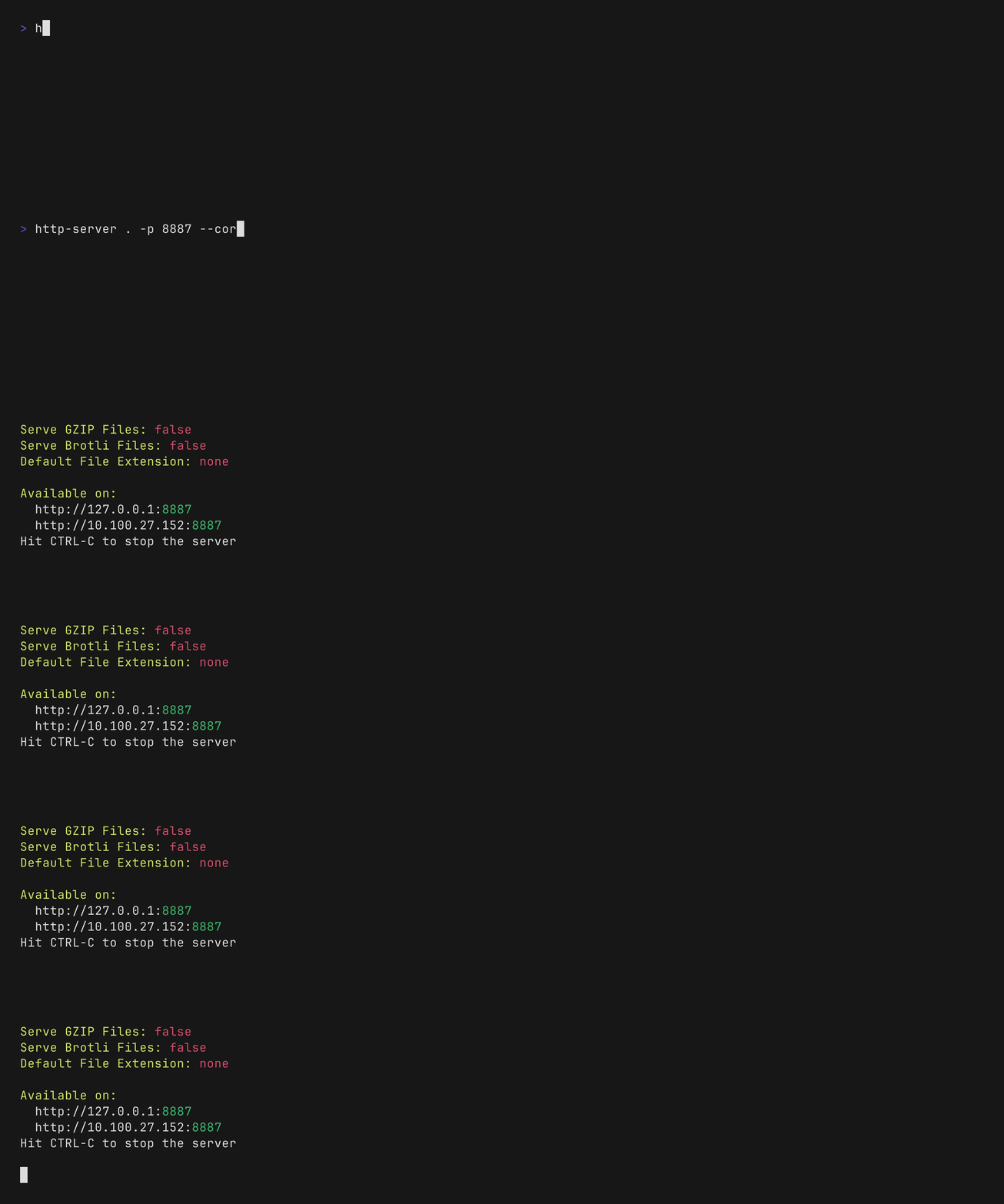
Figure 5. Example http-server command.
To make sure it worked, copy and paste that URL into your browser, and you should see all of your tile directories, similar to the example in Figure 6.
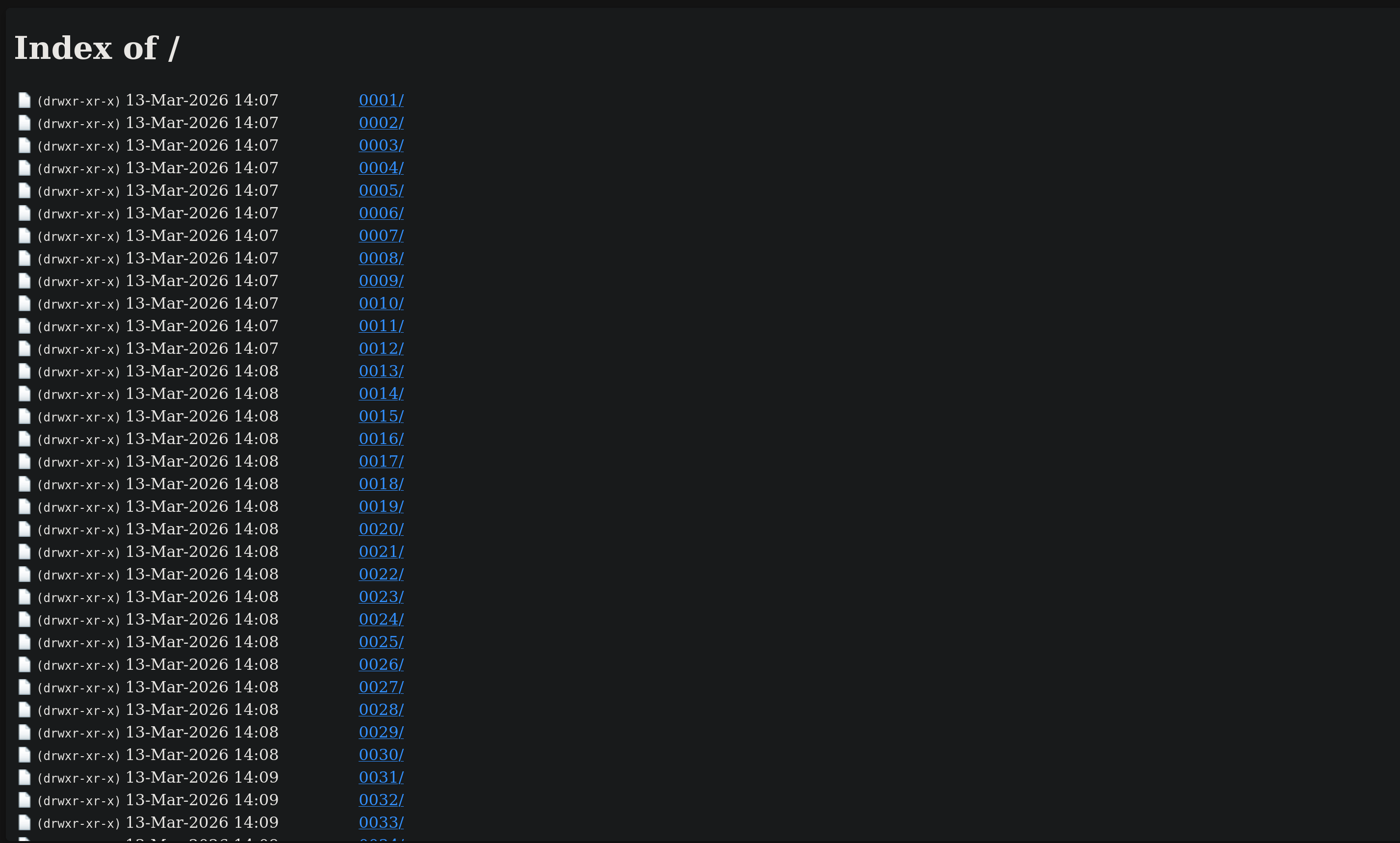
Figure 6. IIIF directory being served in the browser.
Viewing Locally
Now we need to put our URL into a IIIF viewer. If you need a list of viewers that are available, check out awesome-iiif. There is a section of popular viewers for IIIF manifests, along with other resources, if you are interested in diving deeper into IIIF. One popular option is the Mirador Viewer. For this guide, though, I would like to highlight a newer one developed by David Flood called Triiiceratops. This is a lightweight viewer that comes with thirty-two different color schemes, and I am a sucker for a good dark theme. Like other viewers, Triiiceratops comes preloaded with some example images that can be selected from the dropdown menu labeled external controls. At the very bottom of the dropdown is the option to try your own. After selecting this, an input field for a IIIF manifest URL appears. This is where we will put our server URL. According to the iiif-tiler-rust documentation, the URL should begin with iiif after the port number. I am running my HTTP server in the directory labeled 33, which contains all of the originally downloaded images of GA 33 and the iiif directory. So we need to add iiif to the URL. We also need to specify the manifest file, resulting in a URL that reads http://127.0.0.1:8887/iiif/manifest.json. Now you can view your local images just like the online repositories, as seen in Figure 7.

Figure 7. IIIF viewer with local images.
If the viewer has an annotation editor and other markup tools, you can use them as normal. If the viewer saves annotations directly into the local manifest.json file, those edits will persist even when you stop and start the server again.
Conclusion
IIIF-compliant images provide a fantastic research environment for those who need access to objects scattered all over the world in museums, libraries, and other institutions. Relying on those online images exclusively can cause difficulties, though. I hope this guide has demonstrated some of the possibilities and tools researchers can use to set up their own research environment with their own images or downloaded copies of the images they need.
